
Where the milliseconds go in a remote desktop for HPC
By Tarun Nahak
At Siemens I work on delivering Windows remote desktops for HPC workloads that are scheduled through PBS. People use these sessions to drive heavy interactive applications that run on cluster nodes instead of on their own machines. When a session feels sluggish, the cause can sit in any of half a dozen places, and the fix for one is useless for another.
This post is the mental model I use to find out which place it is. None of it is specific to one product; it applies to any system that turns a desktop into a video stream and back.
A remote desktop is a pipeline
Every frame you see goes through the same stages:
- Schedule. Before there is a desktop at all, the scheduler has to find a node with the right resources and start the session there. This happens once, but it is the first thing users notice.
- Capture. On the host, the compositor produces frames and the capture layer grabs what changed since the last one.
- Encode. The frame is compressed with a video codec, on the GPU if the node has a hardware encoder or on the CPU if it doesn't.
- Transport. The encoded frame crosses the network, along with everything that network brings: round-trip time, jitter and packet loss.
- Decode. The client turns the bitstream back into pixels, again on either the CPU or the GPU.
- Present. The decoded frame is converted to the display format and drawn, ideally in step with the monitor’s refresh.
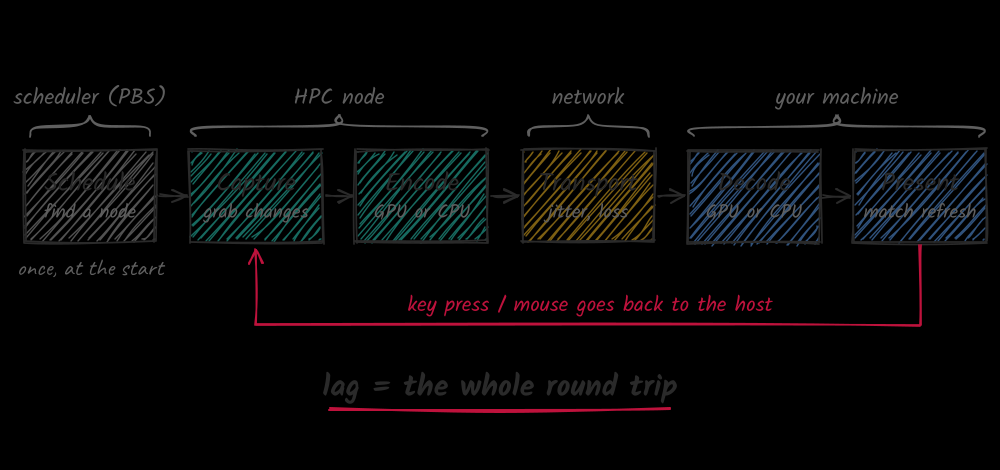
Input travels the other way: a key press goes from the client to the host, the application reacts, and the result comes back through all six stages. What users call lag is the sum of that round trip.
Throughput and latency are different problems
It’s worth separating two numbers that are easy to blur together. Throughput is how many frames per second the pipeline can sustain. Latency is how long a single frame, or a single key press, takes to make it through.
They pull against each other. Buffers smooth out throughput: if decoding occasionally takes too long, a queue of frames hides it. But every buffered frame is a frame of latency. For video playback that trade is fine. For an interactive session it usually isn’t, and it’s better to drop a late frame than to queue it behind others and make everything after it late too.
So when someone reports that a session is slow, the first question is which kind of slow. Choppy motion points at throughput. A delay between moving the mouse and seeing the cursor move points at latency.
CPU or GPU decoding
Decoding is where the CPU-versus-GPU choice gets interesting, because the answer depends on the client, not the server.
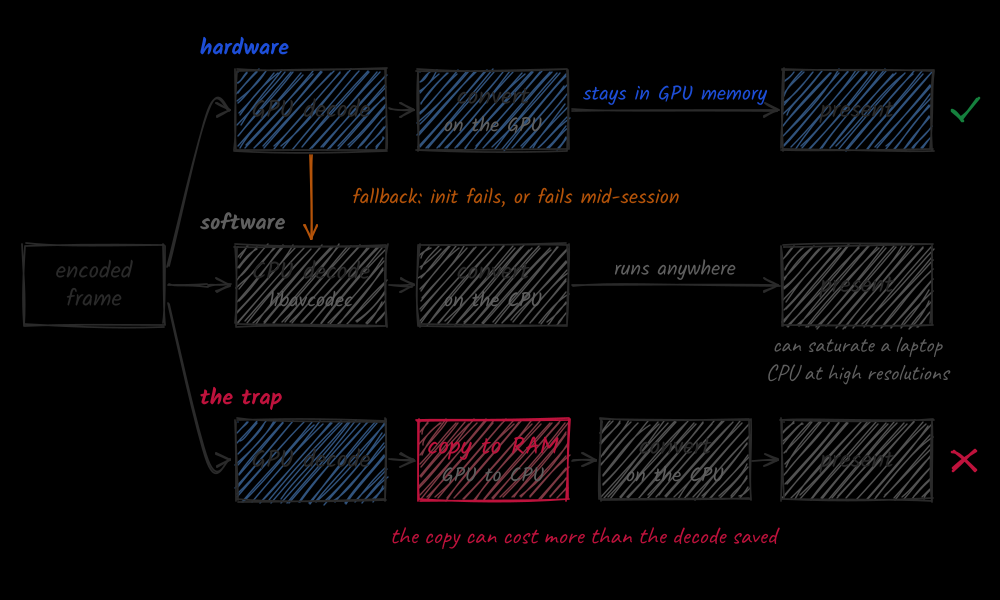
Hardware decoding on the GPU, through APIs like D3D11VA or DXVA on Windows, VA-API on Linux or VideoToolbox on macOS, can handle high resolutions at high frame rates while leaving the CPU almost idle. When it works, it’s the best option by a wide margin.
The catch is the word “when”. Hardware decoders differ between vendors, generations and driver versions. Some don’t support every codec profile. Some limit how many streams can decode at once. And there is a trap that quietly eats the benefit: if the decoded frame is copied from GPU memory back to system memory so the CPU can convert and draw it, that copy can cost more than the decode saved. To get the full benefit, the frame should stay on the GPU from decode to present.
Software decoding on the CPU, for example through FFmpeg’s libavcodec, is predictable and runs everywhere, including virtual machines and thin clients without a usable GPU. It scales with cores, but at high resolutions and frame rates it can saturate a laptop CPU, and the colour conversion from the decoder’s output format to RGB adds its own cost.
In practice the answer is to support both and decide at runtime. Probe what the client can actually do, prefer the hardware path, and fall back to software automatically, both when the hardware decoder fails to initialise and when it fails halfway through a session. A fallback users never notice is worth more than a fast path that occasionally freezes.
Measure each stage, not the whole
An end-to-end number tells you that something is slow, not what. What helps is per-stage timing:
- Stamp each frame when it is captured and carry that stamp through the pipeline, so the client can tell how old a frame is when it’s presented.
- Record how long encode, decode and present take, separately from network time.
- Look at percentiles, not averages. A session with a fine average and a bad 99th percentile frame time is a session that stutters, and stutter is what people complain about.
- Log decoder decisions: which path was chosen, and every fallback with its reason.
With that in place, most investigations become short. If frames leave the host on time and arrive late, it’s the network. If they arrive on time and are presented late, it’s the client.
The things that bite
A few problems come up again and again:
- Resolution changes. Plugging in a monitor or resizing a window can force the decoder to reinitialise. If that path isn’t well tested, it’s where sessions freeze.
- Multiple monitors. More pixels, and sometimes several streams, each with its own decoder.
- Refresh-rate mismatches. A stream at one rate shown on a display at another needs careful frame pacing, or motion looks uneven even when no frames are lost.
- The first minute. Scheduling, session start-up and decoder initialisation all happen at once, so a slow start is often several small delays stacked together.
Know which stage you’re in
Performance work on a remote desktop is mostly about locating the problem. The pipeline view gives you the map, per-stage timing tells you where you are on it, and a reliable fallback keeps users working while you fix the fast path. The fix is rarely where you’d guess first, which is exactly why it pays to measure before you change anything.